WooCommerce live chat with an AI chatbot that answers shoppers for you
Yaplet answers your shoppers' questions about delivery, returns and products from your own store pages, day and night. When a person is needed, it hands the chat to your team. To install, add the free Yaplet Live Chat plugin from WordPress.org and enter your widget ID.
- Free forever
- No card needed

 5.0/5 on G2 and Capterra
 Yaplet + WooCommerce
What Yaplet does in your WooCommerce store.
Answers day and night
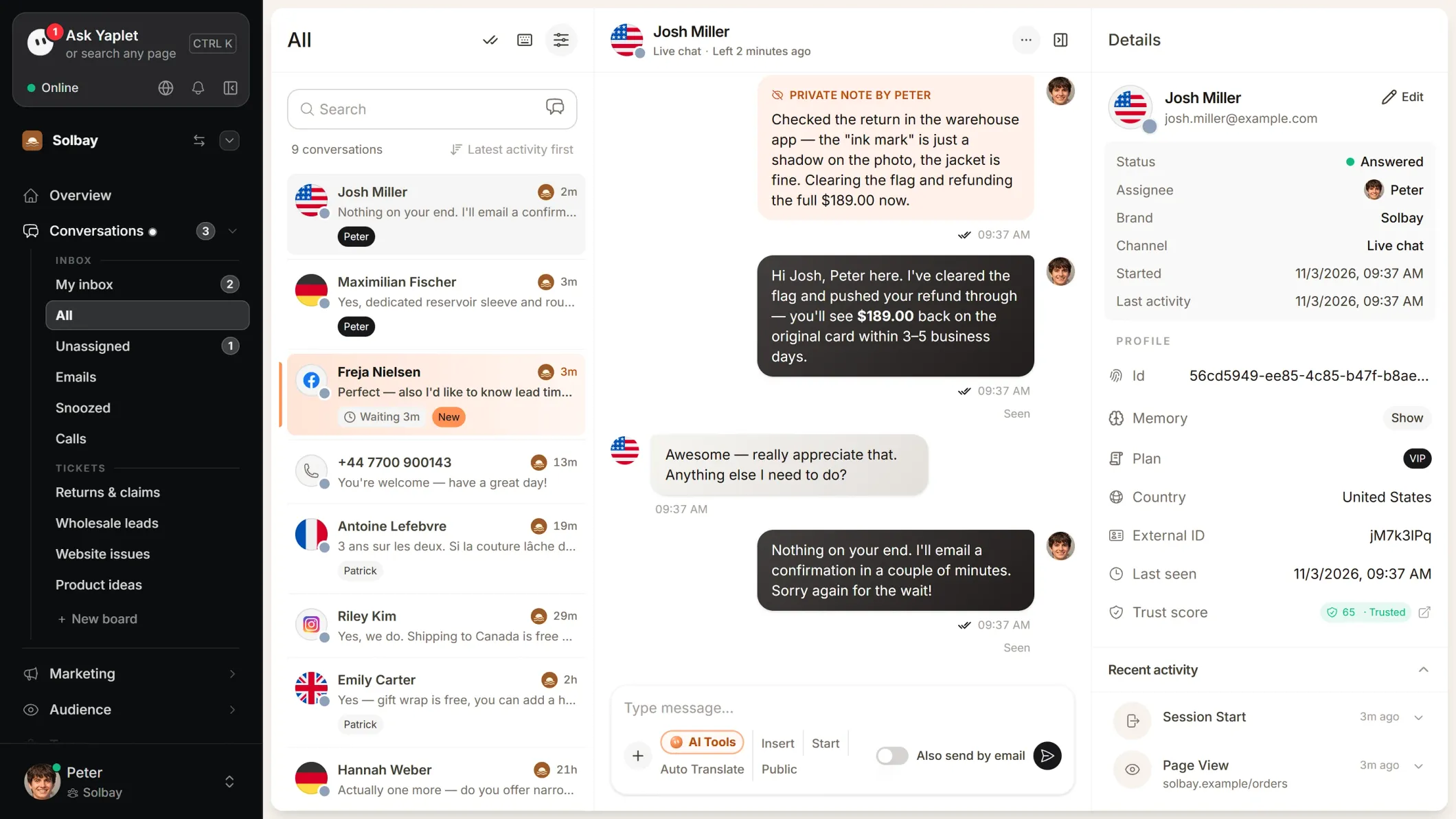
Yaplet answers delivery, returns and product questions from your own pages and help articles, including when your team is offline.
Product recommendations
Connect your catalog as a CSV feed or through the Product API, and Yaplet suggests products in the chat on cards with price, stock and a link.
One inbox for your team
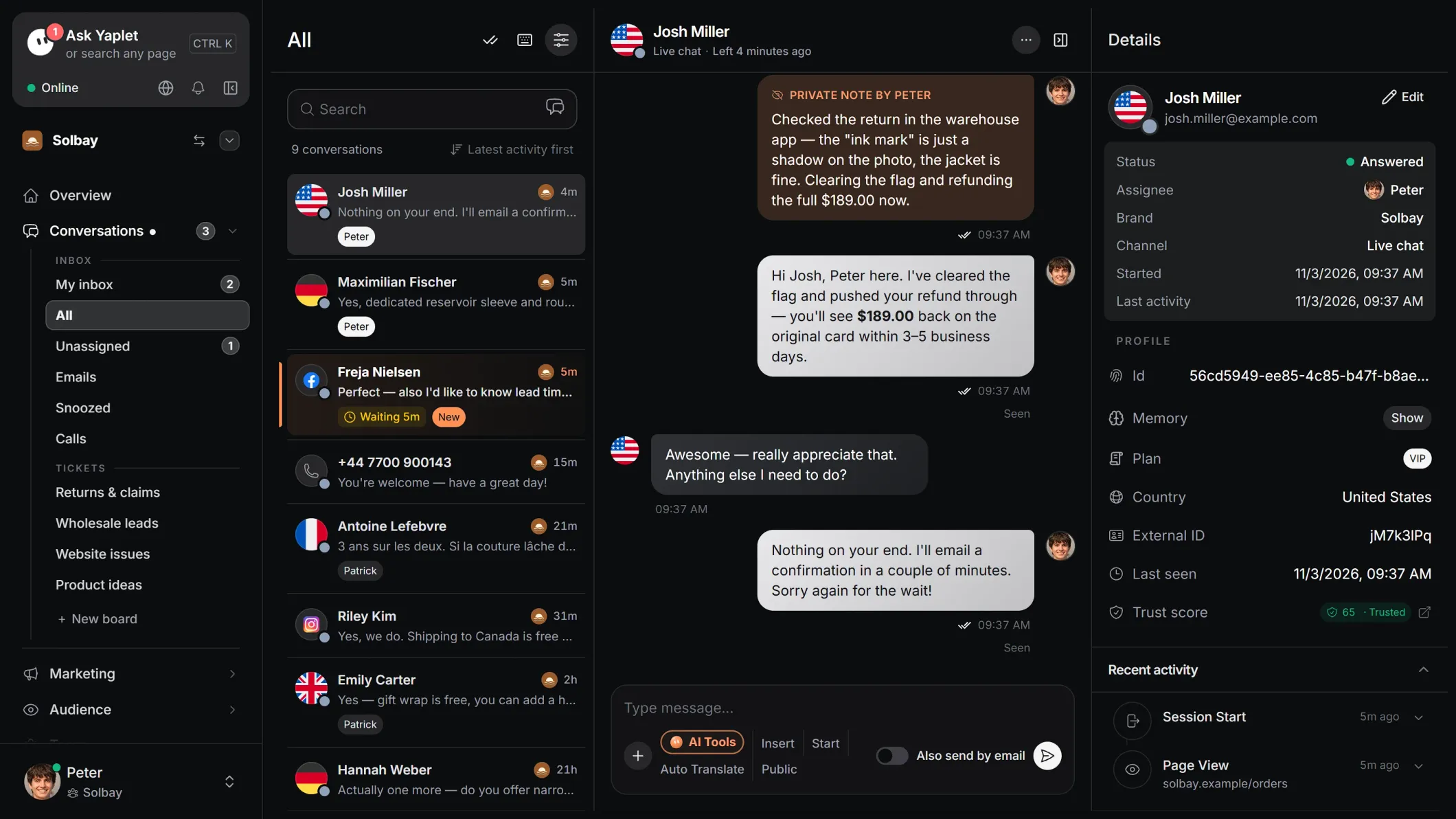
Website chats, Messenger, Instagram and email land in one inbox, with a phone app for replies on the go.
Proactive chat messages
Send shoppers a chat message based on what they do in your store, so they ask their question before they leave.
Speaks your shoppers' language
Yaplet replies in the language the shopper writes in, so one store can serve buyers from several countries.
A plugin, no code
The free Yaplet Live Chat plugin needs only your widget ID. You paste nothing into your theme, and the chat stays when you update or switch themes.
igitems: in more than half of this year's chats, the team didn't have to reply
"The repetitive questions are gone. The team now handles the less common cases, the ones we haven't automated yet."
Daniel
Head of Marketing, igitems
Install Yaplet on WooCommerce in four steps.
- 1
Copy your widget ID
Sign up free, then in Yaplet open Brand → Chat widget → Install, choose WordPress / WooCommerce and copy your widget ID.
- 2
Install the plugin
In WordPress, go to Plugins → Add Plugin, search for Yaplet, install Yaplet Live Chat and click Activate.
- 3
Enter your widget ID
Go to Settings → Yaplet, paste the ID into the Widget ID field and click Save Changes.
- 4
Check your store
Reload your store. The chat button appears in the bottom-right corner. Click it to check that the chat opens.
Prefer pasting code? The free WPCode plugin works too: paste the Yaplet code into its Footer box. Use one method, not both, or you will see two chat buttons.
What works, and how to set it up.
| What you want | Status | How it works |
|---|---|---|
| Chat widget on every page | Works after install | The plugin adds it to the whole store and keeps it there when you update or switch themes. |
| Handoff to your team | Works after install | When a question needs a person, the chat goes to your inbox and the phone app. |
| AI answers from your store pages | Set up in Yaplet | Add pages one by one, by sitemap, or with Smart import, which picks the useful pages for you. |
| Product recommendations with cards | Set up in Yaplet | Connect a Google Shopping style CSV feed, which a WooCommerce feed plugin can make, or Yaplet's Product API. |
| Help articles in the chat | Set up in Yaplet | Write them in Yaplet's knowledge base. Visitors read them in the widget and the AI answers from them. |
| Signed-in customer names | Needs a developer | The plugin does not pass on WooCommerce accounts. A developer can call Yaplet.identify with a signature made on your server. |
| Order status in the chat | Needs a developer | No built-in WooCommerce order connection. If your developer offers an order-status endpoint, add it as an API tool and Yaplet can call it. |
Questions about Yaplet on WooCommerce
Is Yaplet free for a WooCommerce store?
Yes. Yaplet Live Chat is free in the WordPress plugin directory, and your Yaplet account is free forever with no credit card: the chat on your site, the shared inbox and the phone app. You can try the paid tools free for 14 days, with free AI credits. After that, the AI is pay as you go from your credit; with no credit, new chats go to your team.
Do I need a developer to install it?
No. You install the plugin from your WordPress admin and paste your widget ID. Only signed-in customer names and order lookups need a developer.
Will the chat slow down my store?
No. The plugin loads the chat in the background, so your pages don't wait for it before they show.
Can the AI recommend products from my store?
Yes, once you connect your catalog as a Google Shopping style CSV feed or through Yaplet's Product API. A WooCommerce feed plugin can make the CSV feed for you. The AI then suggests products in the chat and shows cards with price, stock and a link to the product.
Can Yaplet look up a customer's order?
Not on its own: there is no built-in WooCommerce order connection. If your developer provides an endpoint that returns order status, you can add it as an API tool and the AI calls it during the chat. Otherwise the AI passes order questions to your team.
Can my team see which customer is chatting?
Not out of the box. The plugin doesn't pass WooCommerce accounts to Yaplet, so shoppers show up as visitors. A developer can call Yaplet.identify with a signature made on your server, and signed-in customers then show up with their name and email.
What happens when I update or change my theme?
Nothing. The plugin adds the chat outside your theme, so theme updates and theme switches don't remove it.
I see two chat buttons. What now?
Deactivate any other chat plugin, and don't run the Yaplet plugin and pasted Yaplet code at the same time.
The chat doesn't show up after I saved the ID.
Clear your caching plugin's cache and any CDN cache, then reload. If a security plugin blocks scripts, allow yaplet.com, sdk.yaplet.com and embed.yaplet.com.
Still have a question?
Let Yaplet answer your WooCommerce shoppers.
Sign up free, install the plugin, enter your widget ID, and the chat goes live on every page of your store.
- Free forever
- No card needed
Related pages
- WooCommerce install guide Every step in detail, plus what to check if the chat does not show up.
- Yaplet AI agent How the AI answers, what it learns from, and when it hands over.
- Live chat The inbox your team answers from, on the web and on the phone app.
- Pricing Start on the free plan and upgrade when you need more.