"We replaced three tools with Yaplet and our response time dropped from 4 hours to 2 minutes. The AI gets it right almost every single time."
Maya K.
Head of Support, SaaS company
Skip the spreadsheet and the second app. Agents clock in next to the inbox they already work from, so hours, shift types and pay land in the same place finance picks them up.
What it looks like
Three pieces from inside Yaplet: the timer that starts the second you clock in, the shift types you defined, and one row of the report finance gets at month-end.
Shift timer
Counts up while you work
Elapsed
00:00:00
Shift types
Each with its own pay multiplier
Agent report row
Shifts, hours and pay per agent
Emma Müller
18 shifts · Chat duty, Training
Hours
142.5
Pay
$1,852.50
Inside Yaplet time management
Built for how support teams work. Clock in next to the inbox, decide what counts as on-duty, and pull a clean report on the last day of the month.
Start a shift in one click from the same screen you reply to customers on. The timer keeps running until you clock out.
Define shift types like chat duty, training or on-call, each with its own pay multiplier and a flag for whether it counts as chat-available.
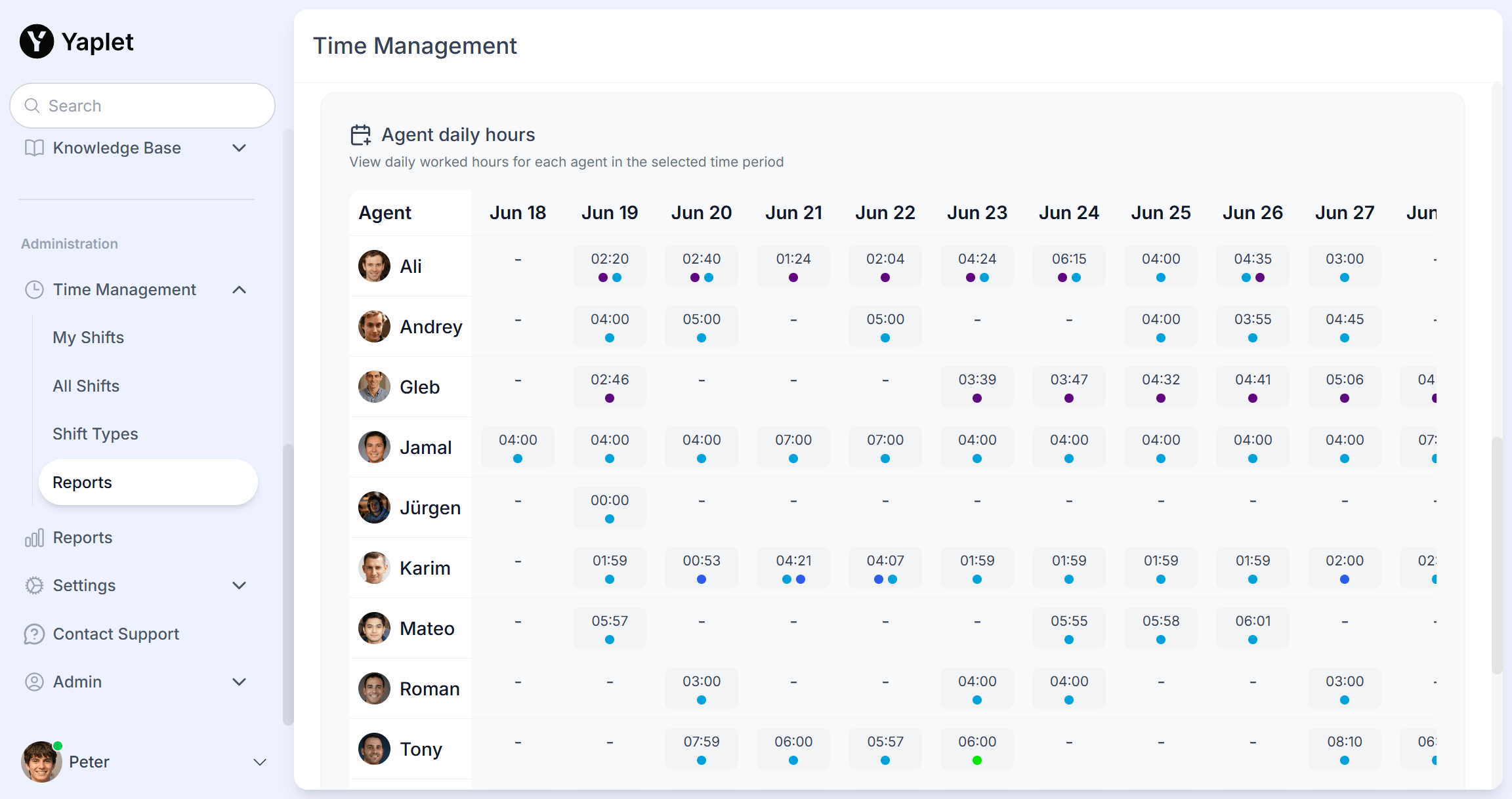
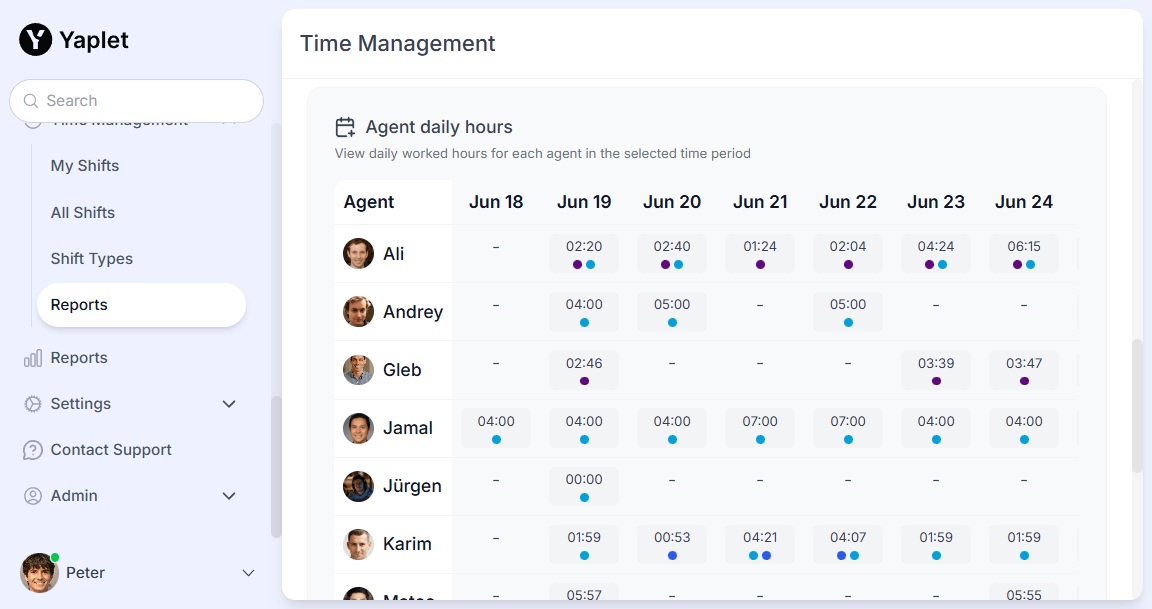
Pick a date range and a set of shift types. You see total shifts, hours and pay per agent, plus a daily-hours breakdown for the team.
Logged a shift with the wrong time? Edit the start or end on any open shift. The old and new values are kept on the record.
Sign off the period and finalise the shifts. Finalised shifts can't be edited, so your monthly numbers stop moving.
Every change to a shift's start, end or comments is logged with the old and new value. You can always answer 'who changed what'.
Online presence
When an agent clocks in on a chat-duty shift, Yaplet sets them online and starts routing new chats their way. When they clock out, they go offline. One toggle, nothing to forget.

Reports for Finance
Pick a date range, pick the shift types that count, and Yaplet gives finance the exact numbers they ask for: total hours and pay per agent, daily breakdowns, and clean rows ready to hand over.

Live in 5 minutes
Skip the project plan and the spreadsheet hand-off. Set your shift types once, invite the team, and you're tracking time before lunch.
Set up chat duty, training, on-call, whatever your team works. Give each one a pay multiplier and decide if it counts as chat-available.
Add the agents who should track shifts and grant the time management permission. Everyone uses the same Yaplet workspace they already have.
Agents clock in from the inbox and clock out when they're done. Reports are ready for you the moment the first shift ends.
Time management is already in your Yaplet plan. Turn it on for the team, set your shift types and send finance the first real report this month.
Common questions
Answers about how Yaplet tracks shifts. Still stuck? Open a chat, a human writes back.
Talk to a real human
We use Yaplet for support too. Test us with it.
No. Time management is part of your Yaplet plan, in the same workspace you already use for chat, email and the rest. There's no separate seat fee for agents who track shifts.
From the inbox. Agents pick a shift type, add a comment if they want, and the timer starts. Clocking out is one click, and Yaplet calculates the duration and pay automatically.
A shift type is a category of work, for example chat duty, training, weekend chat or holiday on-call. Each one has its own pay multiplier and a flag for whether it counts as chat-available.
Only if the shift type is marked chat-available. Chat duty puts the agent online and routes new conversations to them. Shift types like training or admin work track time without changing the inbox.
Yes. While a shift is still pending you can adjust the start time, end time and comments. Every change is logged with the old and new value, so the history stays clear. Once a shift is finalised it's locked.
Pick a date range and the shift types you want to count. Yaplet shows total shifts, hours and pay per agent, plus a daily-hours breakdown for each person. Finance teams export the numbers from there.
Agents see their own shifts. Reports and the all-shifts view are gated by the time management permission, so only managers you've granted it to can see the full picture.
Reviews
Loved by people and teams that care about making every customer interaction more insightful and efficient.